
DXF to STL: How to Convert DXF to STL Files


Both DXF (drawing exchange/interchange format) and STL (stereolithography or standard triangle/tessellation language) are traditional file formats used in design and 3D printing. DXF files typically represent detailed 2D and 3D designs and can accurately exchange data between CAD programs, while STL files are mainly used for 3D printing and focus on representing a part’s outer surface (which it does as a mesh of triangles). Converting one to the other is actually a very straightforward process, and we provide the exact steps a little further down. First, let’s have a brief look at how these files work and what they’re used for today.
Note: The DXF to STL conversion process applies to DXF files containing 3D information. To create a 3D STL model from a flat drawing or 2D DXF file, you will need to open the DXF as a sketch in an appropriate CAD package, extrude the shape, and modify the features as desired to create a fully defined 3D model that can then be saved as an STL.
1. Select a DXF File From Your PC by Clicking the "Choose File" Button.
Go to the Bear File Converter page and follow the onscreen instructions. You can use an explorer route to select the DXF file, or drag and drop it into the window.
2. Click the "Convert" Button to Begin the Process.
Clicking the Convert button will trigger the page to convert your file to the STL format you need.
3. Download Your STL.
Choosing an output folder is not necessary, as the default is to save it into your “downloads” folder. Just click on the Download button and your file will arrive very quickly.
What is a DXF File?
Originally developed in the early 1980s as the native file type for the AutoCAD design package, DXF was created to be interoperable and usable across various CAD software applications, the first of its kind at the time. When it was released, it impressed users with the way it stored 2D (and later 3D) design data so efficiently. AutoDesk wanted to make a file type that would become the universal standard CAD data storage, something the company managed with DXF; it not only survived the shift from 2D to 3D but thrived and maintained its relevance. It’s also a widely trusted interchange tool between CAD and CAM as it provides error-free, highly accurate data and is user-friendly, too.
DXF files organize all the information from the 3D data into “group codes” and “value pairs” and then separate these into graphical (i.e., line types) and non-graphical (i.e., settings) objects. By keeping all this information, DXF files can represent a complete design, whether in 2D or 3D.
If we were to break down the information in a DXF file, it would look something like this:
DXF File Information
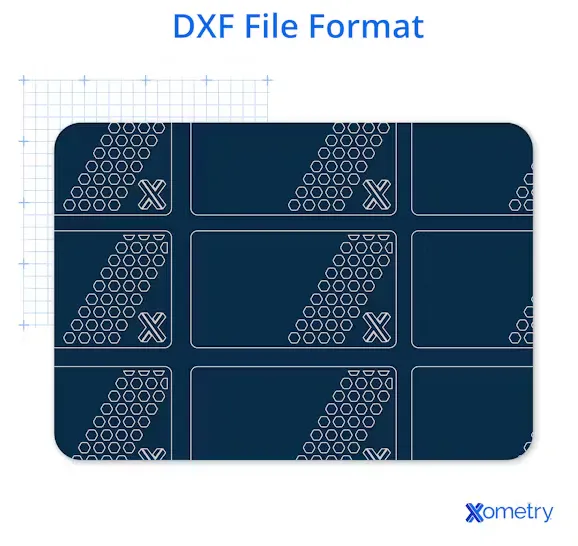
Sometimes, parts from these categories will be null, so they won’t have any content if they’re not needed. But the more complex a part is, especially when it comes to curvature or manufacturing data, it’s all pretty important. The following illustration shows a 2D DXF file:
How is DXF File Used in CAD?
DXF file is used in CAD to store and exchange vector-based design data across different software systems. DXF file format preserves geometric information such as lines, arcs, circles, and text, which allows consistent interpretation between CAD platforms. Designers use DXF files to create and share 2D layouts, technical drawings, and sometimes basic 3D representations without relying on native software formats.
AutoCAD uses DXF files to export drawings for compatibility with other CAD programs and manufacturing systems. CNC workflows depend on DXF files to translate vector paths into machine instructions for cutting, engraving, or machining operations. Laser cutters, plasma cutters, and milling machines read DXF geometry to follow exact toolpaths defined in the design.
CAD interoperability relies on DXF files since different software platforms interpret the same geometric data without loss of structure. Engineers and designers exchange drawings between programs without converting into proprietary formats, which maintains accuracy and workflow efficiency. The standardized structure and wide compatibility define the role of the DXF File.
What Information Does a DXF File Contain?
The information a DXF file contains is listed below.
- Lines: Lines define straight edges using start and end coordinates in the drawing space. Engineers use lines to create outlines, construction references, and boundaries. CNC systems follow line paths to generate accurate tool movements.
- Arcs and Circles: Arcs and circles store curved geometry using center points, radii, and angular values. These elements represent holes, fillets, and circular features in mechanical parts. Manufacturing systems rely on arc data for smooth toolpaths in cutting operations.
- Splines: Splines represent complex curves through control points and mathematical interpolation. Designers apply splines to create aerodynamic shapes, organic contours, and smooth transitions between surfaces. Splines provide higher precision for curved geometry compared to segmented lines.
- Polylines: Polylines combine multiple connected segments into a single entity. Each segment shares endpoints, which maintains continuity across the shape. Polylines simplify data structure and improve efficiency when defining complex outlines or profiles.
- Layers: Layers organize drawing elements into separate categories such as geometry, dimensions, and annotations. Each layer controls visibility, color, and line style, which improves readability and editing control. Layer management helps isolate specific features during design and manufacturing.
- Text and Annotations: Text elements store labels, notes, and specifications attached to the drawing. Annotations communicate part details, tolerances, and assembly instructions. Clear annotation ensures accurate interpretation during fabrication or inspection.
- Dimension Data: Dimension data defines measured values such as distances, angles, radii, and diameters. Dimensions include extension lines, arrows, and numeric values tied to geometry. Accurate dimension data ensures the design meets required specifications during production.
- Blocks: Blocks group multiple entities into reusable components stored as a single definition. Designers reuse blocks for repeated features like fasteners, symbols, or standard parts. Block usage reduces file size and maintains consistency across drawings.
- 3D Geometry (Optional): Some DXF files include 3D elements such as meshes, 3D faces, and 3D polylines defined by X, Y, and Z coordinates. These elements represent depth and spatial relationships in addition to planar geometry. Standard 2D DXF files restrict data to X and Y coordinates for flat layouts used in drafting and CNC cutting, while 3D DXF files extend the same structure into three-dimensional space for modeling and visualization.
What Software Commonly Uses DXF Files?
The software that commonly uses DXF files is listed below.
- AutoCAD: AutoCAD uses DXF as a core exchange format for 2D drafting and technical documentation. Designers export layouts, schematics, and construction drawings as DXF to share with external systems. DXF preserves layers, line types, and dimensions during transfer between software. A workflow includes drafting a mechanical layout in AutoCAD, exporting DXF, and sending it to a CNC cutting system for fabrication.
- Fusion 360: Fusion 360 integrates DXF into sketch-based modeling and CAM workflows. Engineers import DXF profiles to create parametric features and define part geometry. DXF sketches support toolpath generation for machining and fabrication. A workflow includes importing a DXF outline, extruding it into a 3D part, and preparing CNC operations.
- SolidWorks: SolidWorks uses DXF for 2D sketch exchange and sheet metal workflows. Designers convert 3D sheet metal parts into flat DXF patterns for manufacturing. DXF maintains accurate geometry for cutting and forming operations. A workflow includes exporting a flat pattern as DXF and sending it to a laser cutting machine.
- FreeCAD: FreeCAD supports DXF for open-source CAD workflows and parametric modeling. Engineers import DXF sketches to build constrained and editable designs. DXF data integrates into modeling and simulation environments within the software. A workflow includes editing a DXF drawing and converting it into a parametric 3D model.
- SketchUp: SketchUp uses DXF to import 2D plans and export layout data for external use. Designers use DXF files as references for building 3D architectural models. DXF preserves scale and geometry accuracy during import and export. A workflow includes importing a DXF floor plan and constructing a detailed 3D structure.
- CorelDRAW and Adobe Illustrator: CorelDRAW and Adobe Illustrator use DXF for vector editing and fabrication preparation. Designers adjust paths, organize layers, and refine geometry before production. DXF enables compatibility between design tools and cutting machines. A workflow includes importing DXF into Illustrator, cleaning vector paths, and exporting for laser cutting.
Can DXF Files Be Used Directly for 3D Printing?
No, DXF files are not used directly for 3D printing in most workflows since they usually contain 2D vector geometry rather than solid 3D data. DXF files store lines, arcs, and splines that define flat profiles, which lack the volume and thickness required for additive manufacturing. 3D printers require mesh-based formats such as STL or 3MF that describe closed surfaces and solid geometry.
Designers convert DXF files into 3D models by importing the 2D geometry into CAD software and applying operations such as extrusion, lofting, or revolving. The process adds thickness and volume to transform flat profiles into printable solids. After creating a complete 3D model, the software exports the geometry into STL or another mesh format that slicing software interprets for printing.
DXF files still play a role in early design stages and hybrid workflows. Engineers use DXF profiles to define cross-sections, outlines, or toolpaths before building full 3D models. The workflow typically involves importing a DXF file, converting it into a solid model, validating geometry, and exporting to STL for printing.
Is DXF File Used for Laser Cutting?
Yes, a DXF file is used for laser cutting since it stores precise vector geometry that defines exact toolpaths for cutting machines. DXF file includes lines, arcs, circles, and polylines that represent continuous paths, which laser systems follow directly without converting into pixels or images. Laser cutting software reads coordinate data and converts it into motion instructions that control the cutting head, which ensures accurate edge definition and repeatable results across multiple parts.
Manufacturing workflows depend on the DXF file for transferring flat designs from CAD systems into CAM environments. Designers export sheet metal flat patterns, signage layouts, or component outlines as DXF, then import the file into laser software that assigns parameters such as power level, cutting speed, and kerf compensation. Layer information inside DXF separates cutting paths, engraving paths, and marking operations within the same file. Materials such as stainless steel, aluminum, acrylic, and wood use DXF-based paths for precise fabrication in industrial and small-scale production. The standardized vector structure, layer control, and compatibility across machines define the role of the DXF File for Laser Cutting.
Can You Use a DXF File for Sheet Cutting?
Yes, a DXF file is used for sheet cutting since it defines accurate 2D vector paths that cutting machines follow to shape flat materials. DXF file stores geometry as coordinates for lines, arcs, circles, and polylines, which represent exact outlines and internal cut features. Cutting machines typically do not read DXF directly; CAM software converts DXF geometry into toolpaths and machine instructions, which ensures consistent precision across repeated cuts.
Manufacturing workflows rely on a DXF file for preparing flat layouts, nesting parts, and optimizing material usage before cutting begins. Designers export sheet metal components, panels, brackets, and decorative profiles as DXF, then import the file into CAM software that assigns cutting parameters such as feed rate, power level, and kerf compensation. Layer organization inside the file separates cutting paths, engraving paths, and marking operations, which allows machines to execute multiple processes in a single job. Efficient nesting reduces material waste and improves production output when multiple parts fit within one sheet. Materials such as stainless steel, aluminum, acrylic, MDF, and composite panels use DXF-based layouts for reliable fabrication in industrial and small-scale environments. The structured vector format, layer control, and compatibility across cutting systems define the role of the DXF File for Sheet Cutting.
What is an STL File?
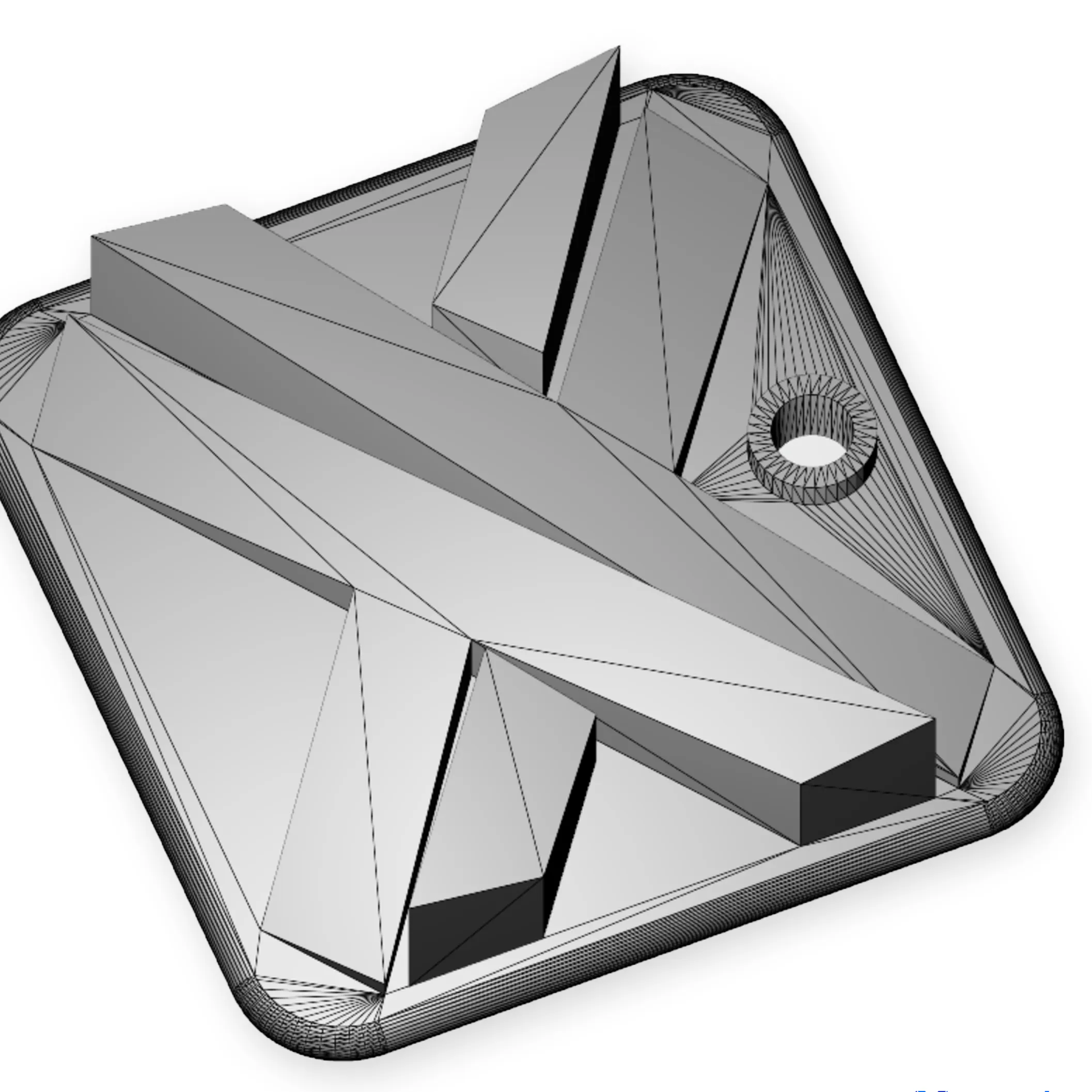
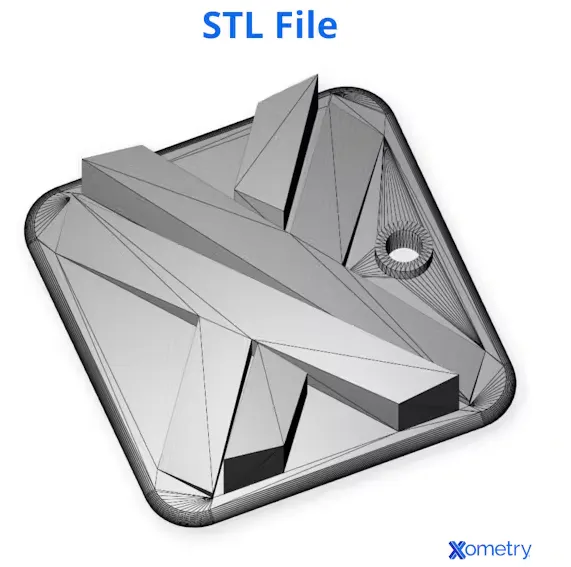
STL is considered the standard file type that most 3D printers use today. It’s pretty old and doesn’t contain information on color or texture. It works by storing points on the surface of an object as geometric data. It uses triangles of different sizes to form a sort of net that describes the exterior 3D shape of an object, although it also doesn’t keep information on thickness either. The following image is an STL preview of the Xometry logo on a tile:
How Can you Prepare STL File for 3D Printing?
To prepare an STL file for 3D printing, follow the ten steps below.
- Check model integrity: Inspect the mesh for holes, gaps, non-manifold edges, and inverted normals. Repair tools close open surfaces and correct invalid geometry before slicing. A fully watertight mesh ensures the slicer reads the model as a solid volume instead of fragmented surfaces.
- Set correct scale and units: Confirm the model uses the intended unit system, typically millimeters for most printers. Incorrect unit conversion leads to dimensional errors that affect fit and function. Accurate scaling ensures the printed part matches design specifications and assembly requirements.
- Optimize mesh resolution: Adjust triangle density to balance surface smoothness and file efficiency. Higher resolution improves curved surfaces and fine details, while excessive triangles slow down slicing and increase file size. A well-optimized mesh maintains detail without unnecessary complexity.
- Verify wall thickness: Measure all walls and features against the minimum printable thickness for the selected material and process. Thin sections risk weak layers, breakage, or incomplete extrusion. Consistent wall thickness improves structural stability and layer bonding.
- Eliminate intersecting geometry: Remove overlapping bodies, internal intersections, and duplicate surfaces within the model. Intersections create ambiguity in slicing and lead to missing or extra material in printed layers. Clean geometry ensures accurate toolpath generation.
- Orient the model properly: Position the model to reduce unsupported overhangs and control surface quality on critical faces. Orientation influences layer strength, print time, and support usage. Proper alignment reduces defects and improves overall print efficiency.
- Plan support structures: Identify regions that require support based on overhang angles and bridging limits. Reducing support dependency lowers material usage and simplifies removal after printing. Strategic support planning improves surface finish and reduces post-processing effort.
- Check manifold and normals: Ensure all faces form a closed volume and normals point outward. Incorrect normals can contribute to issues, but most slicers recalculate or ignore normals and rely primarily on mesh topology (watertightness). Proper face orientation ensures consistent layer generation across the entire model.
- Export clean STL file: Export the model using appropriate resolution and tolerance settings from the CAD software. Binary STL format reduces file size while preserving geometry accuracy. Clean export maintains design fidelity during slicing.
- Validate in slicing software: Import the STL into slicing software to preview layer formation and detect potential issues. Layer-by-layer visualization reveals thin regions, unsupported spans, and structural weaknesses. Final validation confirms readiness to Prepare STL file for 3D Printing and reduces failure risk.
What is the Simplest Way to Convert DXF Files to STL Files?
The simplest way to convert DXF files to STL files is by installing a basic CAD package such as FreeCAD. This can be done by confirming the linear and angular resolution settings. Then open a DXF file, and save it as an STL. It must be noted that not all CAD software can both open and convert DXF files. Additionally, a wide variety of file format converters are also available. These converters offer an advantage over CAD software in that there is less user interface to navigate, making them quicker to grasp the process for novice users. At times, it can be useful to have a PNG to DXF converter, a DXF to SVG converter, and even a JPG to DXF converter.
Is it Possible to Convert STL to DXF Format?
Yes, it is possible to convert STL to DXF format. 3D formats are not fully interchangeable; conversions often result in data loss, approximation, or reduced functionality. A good example of an easily accessible tool to convert STL to DXF format is Aspose.
What is the Difference between DXF and STL Files?
The difference between DXF and STL files is shown in the table below.
DXF and STL files
DXF format works best for technical drawings, laser cutting, and CAD data exchange since it preserves vector accuracy and layered information. STL format works best for 3D printing since it converts geometry into a mesh that slicing software reads directly to generate toolpaths.
Why Do Users Convert DXF Files to STL?
Users convert DXF files to STL to transform 2D vector drawings into 3D models that 3D printers and slicing software can process. DXF stores flat geometry such as outlines, profiles, and paths, while STL represents closed 3D surfaces required for additive manufacturing. Conversion enables a design created for drafting or cutting to move into a 3D production workflow.
Designers extrude or revolve DXF profiles inside CAD software to add thickness and volume before exporting to STL. A 2D outline of a bracket, gasket, or panel becomes a solid part after extrusion, which allows slicing software to generate layers and toolpaths. The process converts lines and curves into a mesh of triangular facets that define the outer surface of the part.
Manufacturing workflows rely on this conversion when a design starts as a flat drawing but requires physical 3D form. A sheet metal profile in DXF converts into an extruded prototype for fit testing, or a laser-cut pattern becomes a 3D printed mold for casting. Product development teams use DXF-to-STL conversion to move from concept sketches into functional prototypes, which supports rapid iteration and physical validation.
Which is Better for 3D Printing DXF or STL?
STL is better for 3D printing than DXF since STL stores a complete 3D surface mesh that slicing software reads directly to generate layers and toolpaths. STL defines surface geometry; it represents closed volumes only if the mesh is watertight, which allows printers to interpret geometry, wall boundaries, and internal structure without additional conversion. DXF stores 2D vector data such as lines, arcs, and splines, which represent flat geometry without thickness or volume, so printers cannot use it directly for additive manufacturing.
DXF remains important in the early design stage where engineers define precise profiles, layouts, and technical drawings. Designers import DXF sketches into CAD software and convert them into 3D solids using extrusion, revolve, or loft operations that add depth and structure. A typical workflow starts with a 2D DXF profile for a bracket, gear outline, or enclosure panel, then converts the profile into a 3D model inside CAD, followed by exporting the final geometry as STL for slicing. Prototyping workflows use DXF for concept layout and dimensional control, then rely on STL for final print preparation and machine execution.
What Tools Can Convert DXF to STL Files?
The tools that can convert DXF to STL files are listed below.
- AutoCAD: AutoCAD imports DXF files and converts 2D drawings into 3D solids using extrusion and surface tools. The software supports accurate geometry control through parametric inputs and measurement tools. Designers refine profiles before exporting STL for manufacturing or prototyping. AutoCAD fits workflows that require detailed drafting combined with basic 3D modeling.
- Fusion 360: Fusion 360 imports DXF into sketch environments and converts profiles into parametric 3D features. Engineers use extrusion, loft, and revolve operations to build solid models from 2D outlines. The platform integrates modeling, simulation, and CAM preparation within one system. Fusion 360 supports complete design-to-print workflows with high precision.
- SolidWorks: SolidWorks converts DXF sketches into fully constrained 3D features using parametric modeling tools. Engineers define dimensions, constraints, and relationships before generating solid geometry. The software supports complex assemblies and detailed mechanical parts before STL export. SolidWorks fits engineering workflows that require strict dimensional control and validation.
- FreeCAD: FreeCAD provides open-source tools for importing DXF and building parametric 3D models. Users convert sketches into solids using feature-based modeling and constraint systems. The platform supports scripting and customization for advanced design control. FreeCAD fits workflows that require flexibility without commercial licensing.
- Blender: Blender imports DXF through extensions and converts vector paths into editable mesh geometry. Designers extrude curves and apply mesh operations to form 3D shapes. The software focuses on mesh editing, visualization, and artistic modeling. Blender fits workflows that prioritize shape manipulation rather than engineering precision.
- TinkerCAD: TinkerCAD offers a browser-based environment for importing DXF and converting shapes into simple 3D objects. Users apply extrusion and basic editing tools to create printable models. The platform provides a simplified interface for rapid prototyping and beginner-level design. TinkerCAD fits quick concept development and educational use.
- Online Converters (AnyConv, ConvertCADFiles): Online converters process DXF files and generate STL output through automated algorithms. Users upload files and receive converted meshes without manual modeling steps. These tools support fast conversion but provide limited control over geometry accuracy. Online converters fit simple designs where precision adjustments are not required.
Which CAD Software Supports DXF to STL Conversion?
CAD software supports DXF to STL conversion are listed below.
- Fusion 360: Fusion 360 imports DXF files into sketch workspaces, where profiles remain fully editable and constrained. Engineers apply extrusion, loft, or revolve features to convert 2D outlines into parametric 3D solids. The software integrates modeling, simulation, and CAM tools within a single environment. A workflow includes importing a DXF bracket profile, defining constraints, extruding into a solid, and exporting STL for 3D printing.
- AutoCAD: AutoCAD converts DXF drawings into 3D geometry using solid and surface modeling commands. Designers use extrusion, sweep, and loft operations to add thickness and shape to 2D entities. The platform maintains coordinate accuracy and layer structure during conversion. A workflow includes drafting a 2D layout, converting it into a 3D form, and exporting STL for prototyping or fabrication.
- SolidWorks: SolidWorks imports DXF sketches and converts them into fully defined parametric features with dimensional constraints. Engineers refine geometry using feature-based modeling tools that ensure precise relationships between elements. The software supports assemblies, simulations, and manufacturing preparation before STL export. A workflow includes importing a DXF flat pattern, building a 3D component, validating dimensions, and exporting STL for additive manufacturing.
- FreeCAD: FreeCAD provides open-source DXF import and parametric modeling tools that convert sketches into solid bodies. Users define constraints, apply features, and adjust geometry through a modular interface. The platform supports scripting and customization for advanced workflows. A workflow includes editing a DXF drawing, converting it into a 3D model, and exporting STL for printing or simulation.
- Blender: Blender imports DXF files through add-ons and converts vector paths into editable mesh geometry. Designers extrude curves and refine topology using mesh editing tools. The software focuses on mesh-based modeling and visualization rather than strict engineering constraints. A workflow includes importing a DXF outline, converting it into a mesh object, and exporting STL for creative or non-precision prints.
- TinkerCAD: TinkerCAD imports DXF files into a browser-based interface and converts them into basic 3D shapes using extrusion tools. Users adjust dimensions and combine primitives to form simple models. The platform emphasizes ease of use and rapid design iteration. A workflow includes importing a DXF shape, extruding it into a solid, and exporting STL for entry-level 3D printing.
Which Free Online Converters Support DXF to STL Conversion?
The free online converters that support DXF to STL conversion are listed below.
- AnyConv: AnyConv provides a lightweight interface for DXF to STL conversion with direct drag-and-drop upload. The system processes vector geometry and outputs STL files without requiring manual modeling steps. File conversion completes within seconds for small to medium designs. AnyConv fits rapid workflows where speed and simplicity matter more than detailed control.
- ConvertCADFiles: ConvertCADFiles focuses on CAD-specific file transformations with support for DXF to STL conversion. The platform reads vector data and generates a mesh representation automatically after upload. The interface requires minimal input and produces ready-to-download STL files. ConvertCADFiles fits workflows that prioritize quick format conversion without editing geometry.
- CloudConvert: CloudConvert supports DXF to STL conversion with broader file management features and optional settings. The platform allows uploads from local storage, URLs, or cloud drives, which expands accessibility. Conversion engines process geometry and produce STL output with consistent formatting. CloudConvert fits workflows that require flexibility across multiple file sources and formats.
- Aspose 3D Converter: Aspose provides a browser-based 3D conversion tool that processes DXF geometry into triangulated STL meshes. The platform interprets vector entities and converts them into printable surface data. The interface supports secure uploads and automatic processing without additional configuration. Aspose fits users who need reliable online conversion with structured output.
- CAD Exchanger Online: CAD Exchanger offers online conversion tools that support DXF to STL with strong compatibility across engineering formats. The system translates CAD geometry into mesh structures while preserving dimensional accuracy. The interface allows file upload, processing, and download in a streamlined workflow. CAD Exchanger fits engineering workflows that require consistent geometry interpretation.
- Online3DConverter: Online3DConverter processes DXF files and generates STL meshes through automated geometry conversion. The platform uses a simple upload-and-convert process with minimal user interaction. Generated STL files are ready for slicing and printing without additional steps. Online3DConverter completes the set of browser-based tools that function as a DXF to STL Converter.
What Problems Can Occur when Converting DXF to STL?
The problems that can occur when converting DXF to STL are listed below.
- Missing Surfaces: Missing surfaces occur when DXF profiles do not form fully closed loops before conversion. Open edges prevent extrusion tools from generating solid bodies, which results in incomplete STL meshes. Slicers detect gaps and fail to generate continuous layers. Closing all contours ensures a valid solid during conversion.
- Non-Manifold Geometry: Non-manifold geometry forms when edges connect incorrectly, or internal faces overlap after conversion. The mesh contains ambiguous regions that slicing software cannot interpret as a solid object. Printing errors appear as missing layers, holes, or unexpected artifacts. Cleaning geometry and removing internal overlaps prevent non-manifold issues.
- Scaling Errors: Scaling errors arise when DXF files use different unit systems than the target STL export. A design created in inches but interpreted as millimeters produces incorrect dimensions. Misalignment affects part fit and assembly compatibility. Consistent unit settings across CAD and export stages ensure accurate size.
- Loss of Curved Detail: Curved entities in DXF convert into triangular facets during STL generation. Low mesh resolution produces coarse edges and visible faceting on curved surfaces. Surface quality degrades when triangle density remains too low. Increasing mesh resolution preserves curvature and improves print finish.
- Overlapping or Duplicate Entities: Duplicate lines or overlapping shapes inside DXF files create conflicting geometry during mesh generation. Conversion tools generate extra faces or intersecting surfaces that distort the final model. These issues increase slicing errors and print defects. Removing duplicates ensures a clean and consistent mesh.
- Incorrect Extrusion Direction: Extrusion errors occur when the conversion process applies thickness in the wrong direction or along an unintended axis. The resulting model appears inverted or distorted relative to the intended design. Orientation mismatches create dimensional inaccuracies and functional issues. Correct extrusion alignment ensures proper geometry formation.
- Thin Walls and Zero Thickness: DXF geometry consists of lines without inherent thickness, which leads to zero-thickness surfaces after conversion. Thin regions fail during printing due to insufficient material for layer bonding. Structural weakness appears in fragile sections of the model. Defining minimum wall thickness ensures durability and print success.
- Support and Orientation Issues: Converted STL models may include overhangs and unsupported features that require additional supports during printing. Poor orientation increases support volume and affects surface quality on critical faces. Excess supports add material usage and post-processing effort. Adjusting orientation improves stability and reduces printing defects.
What Best Practices Are for Nesting DXF File Before Converting to STL?
The best practices for nesting DXF files before converting to STL are listed below.
- Arrange geometry efficiently: Arrange all DXF profiles within a defined boundary that reflects the intended build or sheet size. Efficient placement reduces unused space and keeps related parts visible and manageable. Organized layouts simplify profile selection during extrusion and reduce the chance of selecting unintended geometry.
- Maintain proper spacing: Maintain consistent spacing between profiles to prevent intersections during extrusion. Overlapping or touching profiles create merged solids or invalid meshes after conversion. Clear separation ensures each profile converts into an independent 3D body without ambiguity.
- Align orientation consistently: Align all parts along the same axis and direction before conversion. Consistent orientation simplifies extrusion setup and ensures uniform thickness across all parts. Aligned geometry reduces errors during batch processing and improves downstream assembly alignment.
- Group related components: Group similar parts or assemblies into logical clusters within the DXF layout. Grouping helps isolate profiles for extrusion and reduces selection errors. Organized grouping supports efficient batch conversion and easier model management.
- Remove duplicate and unnecessary entities: Clean the DXF file by deleting duplicate lines, overlapping edges, hidden layers, and unused elements. Redundant geometry creates conflicting surfaces during mesh generation and increases file complexity. Clean data ensures stable conversion and reduces slicing errors.
- Check closed profiles: Verify that every profile forms a fully closed loop before nesting. Open contours prevent solid generation and lead to missing surfaces in the STL file. Closed geometry guarantees successful extrusion and complete mesh formation.
- Optimize scale and units: Confirm consistent units and scale across all nested profiles before conversion. Mixed units lead to incorrect dimensions and mismatched parts after STL export. Accurate scaling preserves design intent and ensures compatibility with other components.
- Plan extrusion strategy: Define extrusion thickness, direction, and feature depth for each nested profile. Different parts may require unique extrusion parameters based on function. Clear planning prevents inconsistent geometry and ensures correct 3D structure.
- Validate layout before conversion: Inspect the entire nested arrangement for overlaps, misalignment, or incomplete shapes. Validation ensures all profiles meet geometric requirements before 3D modeling. Early checks reduce rework and prevent conversion failures.
- Prepare for batch conversion: Organize nested profiles to support simultaneous extrusion and STL export. Batch preparation improves workflow efficiency and maintains consistency across multiple parts. Structured nesting and preparation define the Best Practice for Nesting DXF File.
DXF and STL represent distinct stages of the design-to-manufacturing pipeline, defined by vector precision versus mesh-based fabrication. DXF functions as a CAD interchange format that preserves exact geometric definitions, including lines, arcs, splines, and dimensions, making it suitable for drafting, CNC machining, and laser cutting workflows. However, this precision is typically two-dimensional and lacks the closed volumetric geometry required for additive manufacturing. STL, by contrast, represents geometry as a triangulated surface mesh that defines a complete 3D boundary, enabling slicing software to generate layer-by-layer toolpaths. The transition from DXF to STL is not a simple format conversion but a geometric transformation that requires extrusion, lofting, or other solid modeling operations to introduce thickness and volume. This step can introduce scaling errors, open profiles, and mesh artifacts that must be resolved to ensure printability. In practice, DXF is used to define accurate profiles and layouts, while STL serves as the finalized, fabrication-ready representation of the part geometry.
What Geometry Issues Can Occur when Converting DXF Drawings?
The geometry issue occurs when converting the DXF drawings listed below.
- Open paths: Open paths occur when endpoints of lines or curves do not connect into a closed loop. Extrusion fails since the software cannot define an enclosed area for volume creation. CAD tools detect gaps through boundary or profile analysis features that highlight incomplete loops. Joining endpoints and snapping vertices ensures a closed contour for successful conversion.
- Missing faces: Missing faces appear when surfaces fail to generate during conversion from 2D profiles into 3D solids. The resulting model contains holes that break mesh continuity and prevent proper slicing. Visualization tools such as shaded view or section analysis reveal gaps in the model. Surface repair functions rebuild missing regions and restore a complete solid.
- Overlapping geometry: Overlapping geometry forms when duplicate lines or shapes occupy the same coordinates. Conversion creates intersecting or stacked surfaces that confuse mesh generation. CAD cleanup tools identify duplicates through selection filters or geometry comparison. Removing redundant entities ensures a clean and unambiguous model.
- Non-manifold edges: Non-manifold edges occur when edges connect to multiple faces in an invalid way or create internal intersections. Mesh generation fails since the model does not represent a single closed volume. Validation tools flag non-manifold conditions during analysis. Correcting edge connectivity ensures a proper solid structure.
- Disconnected segments: Disconnected segments exist when parts of a profile remain separate instead of forming a continuous boundary. Extrusion produces fragmented solids or fails entirely. CAD software detects disconnected geometry through selection grouping or join commands. Merging all segments into a continuous loop resolves the issue.
- Zero-thickness geometry: Zero-thickness geometry results from lines or surfaces without volume after conversion. Such geometry cannot define a printable solid and leads to missing layers during slicing. Thickness analysis tools highlight areas that lack sufficient material. Adding defined thickness ensures structural integrity and printability.
- Improper curve definition: Improper curve definition appears when splines or arcs contain irregular control points or excessive segmentation. Conversion generates distorted shapes or uneven mesh surfaces. Curve editing tools refine control points and smooth transitions. Clean curves improve accuracy and reduce mesh artifacts.
- Layer conflicts: Layer conflicts occur when geometry across multiple layers overlaps or duplicates unintentionally. Conversion merges conflicting elements into a single space, which creates invalid surfaces. Layer isolation tools allow inspection and cleanup of each layer independently. Organized layer management prevents errors during conversion.
- Unit and scaling inconsistencies: Unit mismatches between DXF creation and conversion settings produce incorrect dimensions. A model created in inches may import as millimeters, which distorts size and proportions. CAD software provides unit settings and scale tools to verify dimensions before conversion. Consistent units ensure accurate geometry and proper fit.
How Can You Repair an STL File After Conversion?
To repair an STL file after conversion, follow the 10 steps below.
- Import STL into repair software. Start by loading the STL file into mesh repair or editing software such as Meshmixer, Netfabb, or Blender. These programs automatically analyze the mesh for errors like missing faces, duplicate points, or non-manifold regions. A quick visual inspection allows you to identify the major defects in the model, giving a clearer idea of where the repair work will be focused.
- Detect and repair holes. Use the repair tool to automatically detect and highlight holes or gaps in the mesh. Holes in the surface prevent the model from being fully enclosed, which is necessary for 3D printing. The software will fill these gaps by creating new faces, closing the surface to ensure a solid object. If automatic repair doesn’t work, manually fixing holes by creating new triangles over the gaps is an option.
- Merge duplicate vertices. Overlapping or duplicate vertices are common issues that cause irregularities in the mesh. These duplicate points are usually created when parts of the design overlap or when geometry is imported incorrectly. By merging these vertices, you remove unnecessary complexity and prevent errors in the mesh. This results in a cleaner structure and ensures that the geometry is properly aligned.
- Fix non-manifold edges. Non-manifold edges occur when an edge is shared by more than two faces, or when faces are improperly connected, creating an invalid model for 3D printing. These edges can cause issues in slicing software, as they do not define a closed volume. Using the repair tool, non-manifold edges can be detected, and the software will suggest ways to correct or eliminate these invalid connections, ensuring a solid, printable model.
- Correct surface normals. Surface normals define the direction of each face in the mesh. Incorrectly oriented normals (inward-facing instead of outward-facing) can cause issues during slicing and lead to missing or inverted parts during printing. Most repair software includes an option to automatically recalculate and correct the direction of the normals, ensuring that all faces point outward, thus creating a valid mesh for printing.
- Remove intersecting and internal geometry. Internal geometry or intersecting faces can distort the model and make it unprintable. These types of issues occur when two parts overlap or when an internal face is left in the design. Mesh repair tools allow you to remove or merge intersecting geometry, creating a cleaner and more accurate 3D object. Removing internal geometry ensures the model behaves as a solid and printable structure.
- Simplify and optimize the mesh. Complex meshes with an excessive number of triangles can slow down processing times and increase file sizes, potentially leading to inefficient slicing or memory issues. Mesh simplification tools help reduce the number of triangles while preserving the shape and structure of the model. This results in a more efficient mesh that’s easier to slice and print.
- Validate wall thickness. Ensure that the walls of the model meet the required minimum thickness for 3D printing. Thin walls can cause weak points in the print, leading to structural failure. Many repair tools include thickness analysis to highlight areas of concern. You can adjust the design to ensure the walls are thick enough to be supported during the printing process.
- Run final mesh validation. Once all repairs are made, validate the mesh to ensure there are no remaining errors. Mesh repair software typically has a final validation step that checks for common issues such as holes, non-manifold edges, and inverted normals. Running this final check ensures that the model is ready for slicing without hidden problems.
- Export the repaired STL file. Once the mesh is repaired, save the file in STL format with the correct resolution settings. Exporting a clean and corrected STL file ensures that the model is ready for slicing. At this stage, the file should be free of errors, making it compatible with 3D printing software and ensuring an accurate final print.
Which CAD File Formats Can Also be Converted to STL?
CAD file formats that can be converted to STL are listed below.
- STEP (STP): STEP files are widely used in engineering and manufacturing due to their ability to represent 3D solid models with high precision. These files contain detailed geometric data and are used for sharing designs between different CAD systems. STEP files are versatile and can store both surface and solid geometry, which can easily be converted to STL to create printable mesh models. This format is ideal for parts that need to maintain precision in dimensions and features during the design-to-print transition.
- IGES (IGS): IGES files store 3D surface and wireframe data, and while they don’t always define solid bodies like STEP, they still contain sufficient geometric information to be converted into STL files. IGES is commonly used in industries like aerospace and automotive, where complex surfaces need to be shared and processed across various CAD systems. When ready for 3D printing, IGES files can be converted into STL for accurate surface-based models, making it easier to produce prototypes and production parts.
- OBJ: OBJ files are used in 3D modeling software and gaming applications to store mesh data, including vertex positions, texture maps, and face information. The files are used for visual representation in industries such as entertainment, architecture, and design. While OBJ files include more information than just geometry, such as texture and color, OBJ files can be converted to STL, which removes any non-essential data (like textures) and focuses purely on the 3D geometry for 3D printing.
- 3MF: 3MF files are a newer, more advanced file format designed for 3D printing. They can store complete information about the 3D model, including materials, color, textures, and even printing instructions. While 3MF is a more modern alternative to STL, it is not universally supported across all 3D printers, so converting to STL may still be necessary for compatibility. 3MF files are often used in more complex 3D printing workflows where multi-material and multi-color printing are involved, but converting them to STL ensures wide compatibility with various printers and software.
- ACIS (SAT): ACIS files, often associated with the SAT format, represent 3D solids in CAD systems. These files are used in engineering software to model complex geometries and assemblies. They are compatible with professional CAD systems like SolidWorks, Autodesk, and others. When designers need to convert their models to STL for 3D printing, ACIS files can be processed and exported into STL format, which allows the model to be printed with the required geometries and structural properties.
- SolidWorks (SLDPRT): SolidWorks is a widely used CAD tool in mechanical engineering, and it stores data in proprietary SLDPRT files. These files represent fully parametric 3D models, including detailed mechanical components and assemblies. SolidWorks offers native STL export, making it easy to convert parts into printable meshes. The ability to directly export STL files from SolidWorks ensures that designs can be rapidly prototyped, tested, and printed without losing any engineering detail or accuracy.
- AutoCAD (DWG, DXF): AutoCAD, primarily known for its 2D drafting capabilities, can store both 2D and 3D design data. While DXF is typically used for 2D designs, AutoCAD can generate 3D solids that are exportable to STL. The process of converting 3D AutoCAD models to STL is essential when working with CAD layouts for items like mechanical components or architectural models that need to be printed. Exporting STL files directly from AutoCAD ensures that designs transition smoothly from drafting to manufacturing.
- Rhino (3DM): Rhino is a popular CAD software used for 3D modeling, especially in architecture, jewelry, and industrial design. Rhino files (3DM) support both surface and solid geometry, and these files can easily be converted into STL format for 3D printing. Rhino’s flexibility allows designers to create intricate, organic shapes that are ideal for 3D printing. When the design is ready for production, exporting to STL ensures compatibility with most 3D printers and slicing software.
Which CAD Formats Can Be Converted to STL Files?
CAD formats that can be converted to STL files are listed below.
- STEP (STP): STEP files are a comprehensive file format that represents both surface and solid 3D models, capturing precise geometric data and product information such as material properties, tolerances, and assembly structures. These files are often used in professional engineering environments, such as automotive and aerospace, to share complex part designs and assembly data between different CAD systems. When parts or assemblies from STEP files need to be physically prototyped, they are converted into STL to allow for 3D printing. For instance, an intricate turbine blade modeled in STEP can be converted to STL for rapid prototyping to test aerodynamics or functionality.
- DWG: DWG is the native file format used by AutoCAD, primarily for 2D drafting but also supporting 3D geometry. While DWG is commonly used in architectural and civil engineering drawings, it can also store 3D models. When a DWG file contains 3D data, it can be converted into STL to facilitate 3D printing, especially for architectural models, mechanical components, or product designs. For example, an architectural floor plan with 3D elements, such as a building facade, may be converted from DWG to STL to create a physical 3D model for client presentations or site planning.
- STP (STEP): Like STEP, STP files store 3D data with high precision and are used in industries like aerospace, automotive, and manufacturing. The STP format provides detailed and standardized data to represent parts with surfaces, solids, and assemblies, making it ideal for collaborative engineering projects. When precise 3D models created in STP are needed for physical prototyping, they are converted into STL files for 3D printing. A car engine component designed in STP format might be converted to STL for creating a prototype that will be used for stress testing or design validation.
- SLDPRT (SolidWorks Part): SLDPRT files are specific to SolidWorks, a leading CAD software used in mechanical design. These files store 3D part data, including parametric features, dimensions, material properties, and detailed modeling history. SolidWorks users frequently convert SLDPRT files to STL when they need to print 3D prototypes or functional parts for testing. For example, a custom mechanical gear designed in SolidWorks could be exported as an STL file for 3D printing a prototype to test its fit and functionality in an assembly.
- IGES (IGS): IGES is a widely used file format in engineering that can represent 3D surface and solid models, curves, and other geometric data. It is often used to transfer complex surface-based models between different CAD systems, especially in industries like aerospace and automotive design. IGES files are frequently converted into STL for 3D printing when surfaces and complex geometries need to be prototyped. For instance, a highly detailed aerospace wing surface modeled in IGES format can be converted to STL for 3D printing a scale prototype for aerodynamic testing.
- OBJ: OBJ files are commonly used in 3D modeling, animation, and gaming. They store 3D geometry, including vertices, edges, and faces, and are frequently used for visual representations and design mockups. While OBJ files are not typically used for technical engineering, they are valuable in artistic and conceptual workflows where high-quality mesh data is required. These files are easily converted into STL for 3D printing, such as for creating a detailed 3D printed sculpture or a visual prototype of a character or product design.
Can You Convert OBJ to STL?
Yes, OBJ files can be converted to STL. OBJ files are commonly used in 3D modeling and store detailed mesh data, including vertices, edges, and faces. OBJ files can be used directly in many modern slicers; conversion to STL is not strictly required, as 3D printers require mesh-based geometry that represents a solid, watertight surface. STL files, on the other hand, are the standard format for 3D printing, representing 3D models as a mesh of triangles. To prepare a model for 3D printing, it must be converted from OBJ to STL to ensure compatibility with slicers and 3D printers.
The conversion process involves transforming the OBJ file’s mesh into a triangular mesh structure. Many 3D modeling programs, such as Blender, FreeCAD, MeshLab, and Autodesk Fusion 360, allow users to easily import an OBJ file and then export it as an STL file. This conversion ensures the model is properly formatted for slicing software, which generates the layers needed for 3D printing. While converting, users may encounter issues like non-manifold geometry or holes in the mesh, which can affect printability. Before exporting, the model may need repairs, ensuring it is watertight and suitable for printing. This makes the OBJ to STL conversion essential when preparing 3D models for additive manufacturing.
Is It Possible To Convert STEP File to STL Format?
Yes, it is possible to convert a STEP file to STL format. STEP files store 3D models with solid geometry and detailed engineering data, making them ideal for design and manufacturing. However, STEP files are not directly compatible with 3D printing, which requires a mesh-based format like STL. To make a STEP file suitable for 3D printing, it must be converted into a triangular mesh format, which STL files use to define surface geometry.
Converting STEP files to STL involves using CAD software such as Fusion 360, SolidWorks, or FreeCAD. These programs import STEP files and allow users to export the geometry as an STL file, which contains the mesh of triangles that 3D printers use to create layers. During the conversion, the software generates the necessary facets, ensuring that the model is represented as a solid surface. This conversion makes it possible to take an engineering design from a detailed CAD model to a printable 3D object, enabling the transition from STEP file to STL for 3D printing.
Disclaimer
The content appearing on this webpage is for informational purposes only. Xometry makes no representation or warranty of any kind, be it expressed or implied, as to the accuracy, completeness, or validity of the information. Any performance parameters, geometric tolerances, specific design features, quality and types of materials, or processes should not be inferred to represent what will be delivered by third-party suppliers or manufacturers through Xometry’s network. Buyers seeking quotes for parts are responsible for defining the specific requirements for those parts. Please refer to our terms and conditions for more information.