


Shared Space for Stakeholders


End-to-End Project Tracking


Data & Documentation Hub


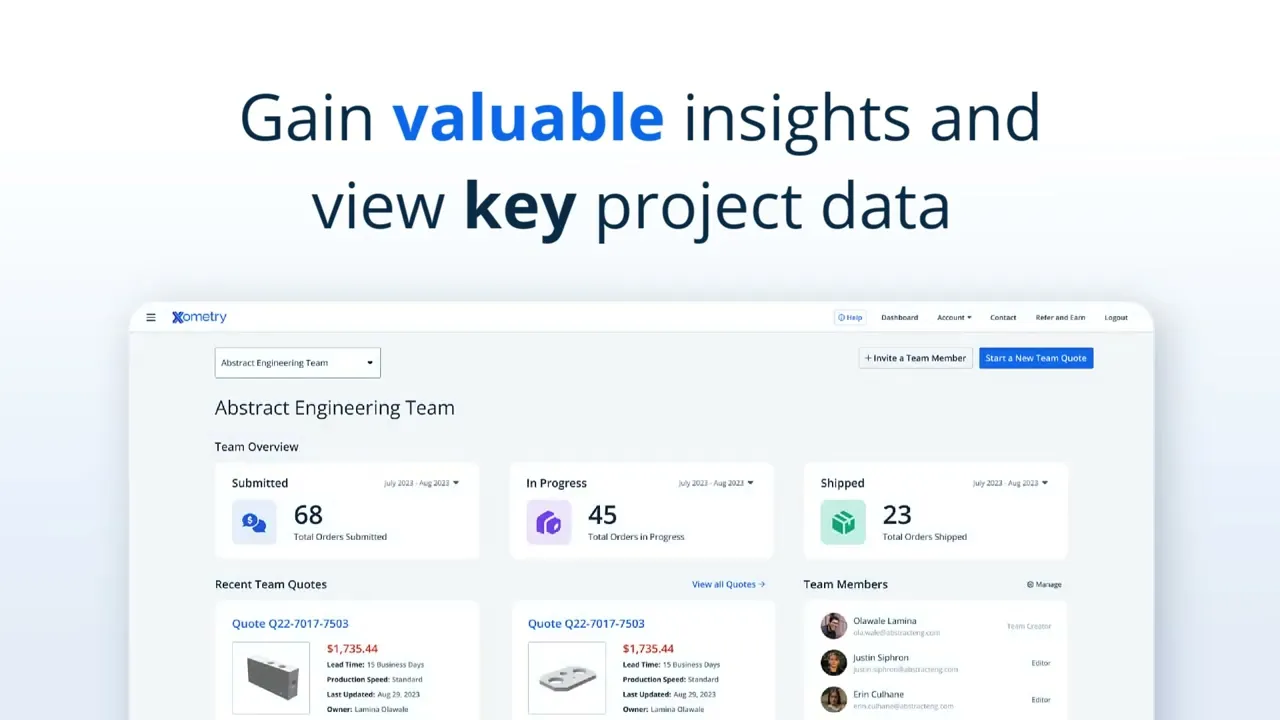
All the Details. One Dashboard.


Eliminate the back-and-forth between Engineering, Procurement, Supply Chain, and Project Management


Access quotes, orders, part statuses, and shipment tracking numbers


Start new quotes or orders, which are automatically shared with your team


Search past orders and download documentation, e.g., inspection reports or material certifications
How to Use Teamspace
Find project details instantly—no more manual inbox searches
Frequently Asked Questions
How do I set up a team?
From your personal dashboard, click on "User Settings." Once you are in your User Settings view, click "Create a New Team."
From here, you can invite members using their email address. They need to accept the email invitation to join your team.
You can see the team creation process in this video:
Note: If invitees don’t already have an Xometry account, they will go through a quick one-time account registration process to secure their account.
Is there a Teamspace overview I can share with my team?
This video demonstrates how to use the Teamspace features, including setting up a team, sharing project details, and managing team members:
Which ways can I search for an order?
You can search for orders using a variety of criteria including order number, PO number, quoter name, order status, and more!
Who can add or remove members from a team?
The creator of the team has the ability to add or remove members.
Can I be part of multiple teams?
Yes! You can be part of any number of teams. In addition, there is no limit on the number of members who can be on a single team.
Can I invite someone outside of my organization?
Yes! Teamspace was built with collaboration in mind, first and foremost. Whether you are working with colleagues or a third party, feel free to invite whoever you’d like to your teams.
Can I give roles to different team members?
There are two types of roles available: Admins and Contributors. If you are the team creator, you are assigned the Admin role by default. On the other hand, if you join a team through an invitation, you will be assigned the contributor role.
Admins can access all of the same features and actions as a contributor; however, they also have access to additional team management features. This includes inviting or removing team members, viewing or canceling pending invitations, designating roles, and deactivating, reactivating, or renaming a team.
Will I be able to see team members' unordered quotes?
Yes, as long as they have shared the quote with the team or the quote was made within the team dashboard. Team member quotes will be displayed on the quotes dashboard. Once a quote has been ordered, it will move over to the orders dashboard where it can be tracked for status updates.
How can I identify parts ready to order?
When you are finished configuring a quote shared with a team, you can tag it for review, approval, or ready for ordering via the “Mark Your Quote” drop-down menu on the quote summary screen. This tag will be displayed on the team dashboard under the team quotes table. Tagging simplifies your review and ordering processes, highlighting the quotes requiring attention from others, such as the buyers responsible for placing orders in your organization.
What order documentation can I download from Teamspace?
You can download documents such as Order Confirmations, Packing Slips, Inspection Reports (if applicable), Certifications (if applicable), and more by clicking the three dots next to the order and selecting "Download Documents."
How do I change or deactivate a team?
An admin can rename or deactivate a team by clicking the three dots on the Team Name panel. Note that deactivating a team will not remove any information associated with teams, such as active quotes or orders; it simply hides the team from view and can be reactivated later if desired.
Admins can remove users or change their roles by checking the box next to their name on the Team Members list, then selecting an action from the drop-down menu in the upper right corner, followed by clicking the “Update” button to apply the change.
Lastly, the Event Log tab can be used to help track team changes and see who made them.
Can I toggle automatic sharing on or off?
Yes. When joining a team for the first time, you may be asked if you’d like to share your quote and order history. Doing so will bring all your previous quotes and orders into the team dashboard view. You can click the “Autoshare My New Quotes” toggle if you want to do this later. The autoshare toggle is a “set it and forget it” feature that, when enabled, will automatically share newly generated quotes with the team.