
SketchUp® Free vs. SketchUp® Pro - Is Pro Worth It?


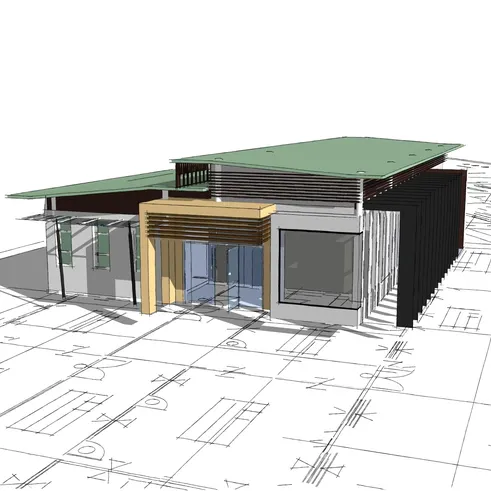
SketchUp® Free and SketchUp® Pro are created to cater to different user needs and proficiency levels, especially in the realm of 3D printing. SketchUp Free is the web-based version of the popular 3D modeling tool. It's an excellent starting point for beginners and hobbyists who are venturing into the world of 3D design. SketchUp Free allows users to create 3D models online for personal use without any cost. SketchUp Pro, with its user-friendly interface and essential tool set, on the other hand, is the premium version offering a more comprehensive suite of tools for professional designers. It includes advanced features (improved rendering capabilities, the ability to import and export various file formats, and a vast library of 3D models and textures).
This article will discuss the difference between SketchUp Free and SketchUp Pro in terms of advantages, disadvantages, features, and capabilities.
What Are the Key Differences between SketchUp Free and SketchUp Pro?
SketchUp Free and SketchUp Pro differ across features, pricing, workflow, and ideal users. SketchUp Free runs entirely in a browser, making it accessible without installation. SketchUp Pro operates as a desktop application, offering greater processing power and offline access.
The key differences between SketchUp Free and SketchUp Pro are shown in the table below.
What is SketchUp?
SketchUp is a 3D modeling software developed by Trimble Inc., built for creating architectural designs, interior layouts, product models, and construction plans. The platform operates through a push/pull modeling method, allowing users to extrude flat shapes into three-dimensional forms with minimal effort.@Last Software released SketchUp in 2000, before Google acquired it in 2006 and later sold it to Trimble in 2012. The software offers several versions, including a free browser-based tool and professional desktop applications. SketchUp targets a wide range of users, from students learning basic geometry to licensed architects producing detailed construction documents. Its intuitive interface reduces the learning curve compared to traditional CAD platforms. The SketchUp platform remains broadly recognized for balancing ease of use with professional-grade modeling output.
What is the Main Use of SketchUp?
The main use of SketchUp is creating 3D models for architecture, interior design, urban planning, and product development. Architects rely on it to visualize building structures before construction begins, converting conceptual sketches into precise 3D representations. Interior designers use the platform to arrange furniture layouts and test spatial proportions within a room. Product developers apply their modeling tools to prototype physical objects intended for manufacturing or 3D printing. The software supports both early-stage concept modeling and detailed technical drafting, depending on the version used. SketchUp Pro adds LayOut, a tool that converts 3D models into professional 2D construction documents. Across industries, the platform acts as a bridge between initial design concepts and production-ready 3D modeling output.
What is the Difference Between SketchUp and Fusion® for 3D Printing?
The difference between SketchUp and Fusion® for 3D printing lies in the modeling approach, precision level, and intended workflow. SketchUp focuses on surface-based modeling, making it effective for architectural visualization and concept design but less suited for parametric or mechanical parts. Fusion® operates as a parametric CAD and CAM platform, allowing users to define dimensions through constraints and equations that update the entire model automatically. Fusion® produces watertight geometry with precise tolerances required for functional mechanical parts, for 3D printing. SketchUp requires additional steps to ensure mesh integrity before exporting files for printing, commonly needing plugins to fix non-manifold geometry. Fusion® integrates CAM tools that connect directly to manufacturing workflows, while SketchUp prioritizes visual design over fabrication precision. Designers choosing between SketchUp and Fusion® must evaluate whether the project demands aesthetic modeling or engineering accuracy.
Is SketchUp better than AutoCAD for 3D Printing?
No, SketchUp is not better than AutoCAD for 3D printing. AutoCAD outperforms SketchUp for 3D printing in precision-demanding applications. SketchUp lacks the native coordinate-based drafting and parametric constraints that make AutoCAD more efficient for technical precision. AutoCAD produces geometry with exact dimensional tolerances using coordinate-based drafting, making it reliable for technical parts that require tight measurements. SketchUp excels in visual concept modeling and architectural design but lacks native parametric tools that ensure dimensional accuracy across complex assemblies. AutoCAD supports direct export to formats compatible with slicing software, maintaining dimensional integrity throughout the workflow. SketchUp files commonly require mesh repair before printing due to surface modeling limitations that produce non-manifold edges. Professionals in mechanical engineering and product manufacturing favor AutoCAD for its precision output over SketchUp's design-oriented approach. For projects prioritizing aesthetics or architectural form over mechanical accuracy, SketchUp® vs. AutoCAD presents a closer comparison worth evaluating based on project requirements.
Is SketchUp Used for 3D Printing?
Yes, SketchUp is used for 3D printing. SketchUp is used explicitly for architectural models, decorative objects, and conceptual prototypes. The software exports files in STL format, which slicing software requires to prepare models for printing. The exported mesh must stay watertight, with no open edges or non-manifold geometry, before the file reaches a printer. SketchUp Pro supports plugins that automate mesh repair and geometry validation, while SketchUp Free users must manually ensure geometry is manifold, as it does not support third-party extensions. Professionals working on precise fabrication projects rely on SketchUp Pro's plugin ecosystem to meet the geometry standards that 3D printing workflows demand. The platform suits hobbyists and designers creating non-mechanical parts where exact tolerances are less critical. Additional CAD tools improve accuracy beyond what SketchUp provides natively, for complex functional components.
Can You Use SketchUp to Send for Online 3D Printing Services?
Yes, you can use SketchUp to send for online 3D printing services. Users send SketchUp models to online 3D printing services after completing proper file preparation. The model requires export as an STL or OBJ file with a fully closed, watertight mesh before uploading to a printing platform. Designers must correct open edges, reversed faces, and non-manifold geometry to avoid print failures or rejected files. SketchUp Pro supports plugins from the Extension Warehouse that automate mesh analysis and repair prior to export. SketchUp Free handles basic exports but lacks built-in validation tools, requiring manual inspection of the geometry. It uploads directly to fabrication platforms or to online 3D printing services for material selection and production, once the file meets mesh integrity standards.
What is SketchUp Free for 3D Printing?
SketchUp Free is web-based 3D modeling software that's accessible directly from a browser. Its user-friendly design makes it a great option for those who are new to 3D printing. A vast array of 3D models can be made by users with SketchUp Free. Those who are unfamiliar with 3D design and printing will find it especially helpful since it provides an easy-to-use platform for rapidly realizing ideas.
What Projects Can SketchUp Free Print?
SketchUp Free is suitable for a variety of 3D printing projects, including:
- Architectural Models: Create detailed models of buildings, structures, and landscapes.
- Interior Design: Design furniture, fixtures, and other interior elements.
- Educational Models: Develop models for educational purposes, such as geometric shapes and historical buildings.
- Hobbyist Prototyping: Quickly prototype personal projects or concepts for non-commercial 3D printing.
- Hobby Projects: Craft models for hobbies, such as miniature figures, model trains, or drones.
What Are the Advantages of SketchUp Free for 3D Printing?
SketchUp Free offers several benefits for 3D printing enthusiasts:
- Ease of Use: It has a user-friendly interface that's easy for beginners to grasp and create printable designs.
- Accessibility: Being browser-based, it's accessible from any device with an internet connection.
- Essential Tools: Equipped with essential modeling tools for designing 3D models with ease.
- Cloud Storage: Includes 10 GB of cloud-based storage via Trimble Connect for personal project management.
- Trimble Connect: A feature that facilitates collaborative designing and feedback.
What Are the Disadvantages of SketchUp Free for 3D Printing?
However, SketchUp Free also has some limitations:
- Internet Dependency: Requires a consistent internet connection as it's predominantly browser-based.
- Usage and Export Limitations: SketchUp Free is restricted to personal, non-commercial use and supports limited export formats compared to professional versions.
- Performance Issues: May experience performance issues with large and complex models, especially on older hardware.
- Limited Advanced Features: Access to professional tools, such as the Extension Warehouse or LayOut, requires a paid subscription tier (Go, Pro, or Studio).
What Are the Key Features of SketchUp Free?
For customers who need to generate models for 3D printing, SketchUp Free is an extensive web-based 3D modeling tool with a variety of features catered to both novices and experts. Here are a few of its salient attributes:
- Web-Based Modeler: SketchUp Free operates directly in your browser, eliminating the need for software downloads and allowing for immediate access to 3D modeling tools.
- User-Friendly Interface: The platform is designed with a straightforward interface, making it accessible and easy to learn for new users.
- Core Modeling Tools: It includes all the essential tools required for basic 3D modeling, such as drawing shapes, pushing/pulling surfaces, and moving objects.
- Cloud Storage: Users get 10 GB of free cloud storage on Trimble Connect for personal project management and sharing view-only links with others.
- Interoperability: SketchUp Free supports the import of various file types, including STL files, which are commonly used for 3D printing projects.
- Community and Support: Access to a large community of users and a wealth of online resources for learning and troubleshooting.
Which Modeling Tools are Available in SketchUp Free?
The modeling tools that are available in SketchUp Free are listed below.
- Push/Pull Tool: The push/pull tool extrudes flat 2D faces into 3D volumes by pushing or pulling a selected surface along a perpendicular axis. SketchUp Pro includes Solid Tools for boolean operations (union, subtract, trim), which help manage manifold geometry, whereas SketchUp Free users must perform these operations manually.
- Line Tool: The line tool draws straight edges between two defined points, creating the foundational outlines that other modeling tools act upon. SketchUp Pro and SketchUp Free utilize the same core inferencing engine for snapping to geometric points and axes, ensuring alignment accuracy across platforms.
- Rectangle Tool: The rectangle tool generates flat four-sided shapes by defining two opposite corners on the modeling surface. SketchUp Pro and SketchUp Free allow for precise dimensioning via the native Measurements box, though SketchUp Pro supports advanced parametric workflows through third-party extensions.
- Arc Tool: The arc tool draws curved segments by defining a center point, radius, and sweep angle across the modeling plane. SketchUp Pro allows the installation of extensions to create complex splines and Bezier curves, while SketchUp Free is limited to native fixed-segment arc and circle tools.
- Move Tool: The move tool repositions vertices, edges, or faces along any axis to adjust geometry after initial creation. SketchUp Pro pairs the move tool with parametric modeling extensions that apply constraint-driven positioning, a precision feature absent from SketchUp Free.
Does SketchUp Free Offer 3D Modeling Capabilities?
Yes, SketchUp Free does offer 3D modeling capabilities. It is an online 3D design software that allows users to dive into creating models without downloading any software. The platform offers fundamental modeling tools appropriate for 3D printing enthusiasts and beginners. Different 3D shapes and geometries can be created by users and exported as STL files for 3D printing.
What Cloud Features are Available in SketchUp Free?
The cloud features available in SketchUp Free are listed below.
- Trimble Connect Cloud Storage: SketchUp Free stores all projects automatically in Trimble Connect cloud storage without requiring manual saves. Users retrieve and edit saved projects from any internet-connected device without transferring files manually.
- Browser-Based Project Access: Users access the modeling environment directly from any web browser by signing into a Trimble account. The platform loads active projects immediately without requiring local software installation or file downloads.
- Online Collaboration: Trimble Connect allows multiple users to view and share project files stored in the cloud remotely. Teams review shared models without needing a SketchUp license installed on their devices.
- 3D Warehouse Integration: SketchUp Free connects directly to the 3D Warehouse library, allowing users to search and download pre-built models into active projects. Downloaded components integrate immediately into the workspace, reducing manual modeling time for standard objects.
"In professional additive manufacturing, the transition from architectural surface intent to a true manifold solid is the most critical point of failure. Utilizing SketchUp Pro’s native Solid Tools to verify volumetric integrity (prior to final mesh optimization via the Extension Warehouse) is a non-negotiable step for any DFM-compliant workflow."
Can SketchUp Free be used professionally?
No, SketchUp Free cannot be used professionally. The SketchUp Free lacks extension support, preventing access to rendering plugins, parametric tools, and mesh repair automation that professional workflows depend on. LayOut, the tool architects and designers use to produce construction documents and client presentations, is absent from SketchUp Free entirely. File export options are restricted, limiting compatibility with professional fabrication and documentation pipelines. Professionals in architecture, engineering, and product layout require desktop performance, offline access, and advanced toolsets that the SketchUp Pro provides. Freelancers or layout students performing quick concept sketches represent the closest professional-adjacent use case for SketchUp Free, but production-level deliverables require upgrading to the Pro version.
What is SketchUp Pro for 3D Printing?
SketchUp Pro is a professional 3D modeling software that offers advanced features for creating highly detailed models suitable for 3D printing. It includes Solid Tools for Boolean operations, allowing users to combine or subtract volumes to create the manifold geometry required for 3D printing workflows.
What Projects can SketchUp Pro Print?
SketchUp Pro can print a wide array of projects, especially those requiring detailed modeling and precision. It's suitable for:
- Architectural Design: Detailed models of buildings and structures.
- Concept Prototyping: Visual prototypes, fit-checks, and non-mechanical components.
- Product Design: Complex product models for prototyping and testing.
- Educational Tools: Anatomical models, historical reconstructions, and more.
What Are the Advantages of SketchUp Pro for 3D Printing?
The advantages of SketchUp Pro for 3D printing are numerous, making it a popular choice for professionals and enthusiasts alike:
- Advanced Tools: It offers a range of advanced tools that are not available in the free version, such as solid tools and custom styles, which are essential for creating complex models.
- Compatibility: The software supports a wide array of file formats, including STL and OBJ, which are commonly used in 3D printing, ensuring seamless integration into various workflows.
- Extension Warehouse: Users have access to an extensive library of plug-ins and extensions that can significantly enhance modeling capabilities.
- Extension-Based Error Checking: SketchUp Pro supports powerful third-party extensions, such as Solid Inspector squared, to identify and fix non-manifold geometry and other print-related errors.
- Affordability: Despite being a paid version, SketchUp Pro is considered an affordable option compared to other professional 3D modeling software.
What Are the Disadvantages of SketchUp Pro for 3D Printing?
While SketchUp Pro is a powerful tool for 3D modeling and printing, it does have some disadvantages:
- Cost: SketchUp Pro is a paid software, which may not be feasible for all users, especially hobbyists or those just starting with 3D printing.
- Learning Curve: The advanced features of SketchUp Pro can require a significant amount of time to learn, which might be challenging for beginners.
- System Requirements: For optimal performance, SketchUp Pro requires a robust computer system, which could entail additional expenses for upgrades.
- Overwhelming for Beginners: The extensive range of features can be overwhelming for new users who may not need such advanced tools for simple projects.
- Not Originally for 3D Printing: SketchUp was initially developed for architectural design, not specifically for 3D printing, which means some tools may not be as refined for this purpose as those in software designed specifically for 3D printing.
What Are the Key Features of SketchUp Pro?
SketchUp Pro is a professional 3D modeling software that provides a robust set of features for design and construction professionals. Here are some of its key features:
- Advanced Modeling Tools: Offers a comprehensive suite of tools for creating detailed 3D models, including complex geometries and organic shapes.
- Extensive Material Library: Provides a vast collection of materials and textures to apply to models for a more lifelike appearance.
- Dynamic Components: Allows users to create components with parametric functions, making it easier to adjust and manipulate models.
- Layout: A tool for creating professional-grade documentation, including detailed construction drawings and presentations.
- Unlimited Cloud Storage: With Trimble Connect, users have access to unlimited cloud storage for easy sharing and collaboration on projects.
Is SketchUp Pro Suitable for Professional Use in Industries like Architecture and Design?
Yes, SketchUp Pro is suitable for professional use in industries like architecture and design. It offers a full range of tools designed for producing professional-caliber documentation, intricate 3D modeling, and excellent rendering. It's a reliable option for accurate measurements and lifelike representations because of its versatility in handling point cloud data and compatibility with multiple file formats.
What is the Main Advantage of SketchUp Free Compared to SketchUp Pro for 3D Printing?
The main advantage of SketchUp Free over SketchUp Pro for 3D printing is its accessibility. SketchUp Free is a web-based application that is completely free of cost, providing basic 3D modeling features suitable for beginners or hobbyists.
What is the Main Advantage of SketchUp Pro Compared to SketchUp Free for 3D Printing?
For 3D printing, SketchUp Pro's primary advantages include advanced Solid Tools for boolean operations and access to the Extension Warehouse for automated mesh repair.
What Additional Applications Come with SketchUp Pro?
The additional applications that come with SketchUp Pro are listed below.
- LayOut: SketchUp Pro includes LayOut, allowing users to convert finished 3D models into professional 2D presentations and construction documents with annotations, dimensions, and title blocks. Architects and engineers rely on LayOut to produce client-ready drawings that communicate structural and spatial intent across professional design workflows.
- Modernized Visual Styles: SketchUp Pro offers an enhanced Styles panel with built-in features like Ambient Occlusion and AI-powered Diffusion for professional presentations, replacing legacy tools like Style Builder.
- Extension Warehouse Access: SketchUp Pro grants users full access to the Extension Warehouse, where professionals install plugins covering rendering, mesh repair, parametric modeling, and workflow automation. Design teams expand platform functionality through targeted extensions that address specific project and industry requirements.
- Trimble Connect Integration: SketchUp Pro connects to Trimble Connect, allowing users to store, share, and collaborate on project files through cloud-based storage. Project teams access synchronized model files remotely, supporting coordinated review and feedback across professional design workflows.
- Advanced Professional Exports: SketchUp Pro provides exclusive access to professional formats such as DWG, DXF, and IFC, which are essential for CAD and BIM integration. Professionals send export-ready files directly to manufacturing pipelines, reducing file conversion steps in production-focused design workflows.
Does SketchUp Pro Support Extensions and Plugins?
Yes, SketchUp Pro supports extensions and plugins. SketchUp Pro supported extensions and plugins through the Extension Warehouse ecosystem. The Extension Warehouse hosts hundreds of add-ons covering rendering, parametric modeling, mesh repair, structural analysis, and workflow automation. Professionals utilize integrated AI rendering tools or install third-party extensions like Enscape and V-Ray to generate photorealistic visualizations directly from models. Mesh repair plugins (Solid Inspector automates geometry validation, identifying and correcting non-manifold edges) before STL export for 3D printing. Parametric modeling extensions like Curic Section and FredoScale add dimension-driven controls that the native SketchUp toolset does not include. BIM-focused plugins connect SketchUp Pro models to building information workflows used in architecture and construction management. The breadth of available extensions makes SketchUp Pro adaptable to specialized professional requirements across multiple design and fabrication industries.
How Does SketchUp Free vs SketchUp Pro Compare side by side?
SketchUp Free and SketchUp Pro serve different user needs across platforms, storage, tools, and extensibility. SketchUp Free operates entirely in a browser at no cost, while SketchUp Pro delivers a full desktop application with advanced professional features at [$399/year]. The table below compares both versions across key dimensions.
The table below compares SketchUp Free and SketchUp Pro.
How Do the Platforms Differ between SketchUp Web and Desktop?
SketchUp Web runs in a browser, while SketchUp Pro desktop operates as a locally installed application, creating fundamental differences in performance, offline access, and file management. Browser-based modeling depends on internet connectivity and processes geometry through the web environment, limiting capacity for large or complex projects. The desktop application leverages local hardware processing power, delivering faster response times and handling intricate multi-component models without lag.
Desktop processing offers measurably better performance and offline capability, making SketchUp Pro desktop the preferred environment for professional modeling tasks that demand reliability and speed.
How Can a Different Version of SketchUp be helpful for Different Types of 3D Printing?
SketchUp Free and SketchUp Pro each align with different 3D printing methods based on their modeling capabilities and file preparation tools. SketchUp Free produces geometry adequate for FDM printing of decorative and low-tolerance objects where exact dimensions are less critical. SketchUp Pro, utilizing native Solid Tools and third-party mesh repair plugins, generates the manifold STL files required for SLA and SLS printing, where surface detail and watertight geometry are mandatory. Resin-based printing methods like SLA require precise surface geometry with no open edges, a standard reliably achieved through SketchUp Pro's validation tools. Functional parts produced for Multi Jet Fusion or DMLS printing demand dimensional accuracy that SketchUp Pro handles effectively through its advanced toolset. SketchUp Free serves hobbyists printing simple FDM objects, while SketchUp Pro supports professionals requiring print accuracy across multiple types of 3D printing.
What Feature Differences Matter Most for Professional Workflows between SketchUp Free and Pro Version?
The feature differences that matter most for professional workflows between SketchUp Free and Pro Version center on extension support, documentation tools, and desktop performance. SketchUp Pro's access to the Extension Warehouse allows professionals to install rendering, mesh repair, and parametric modeling plugins that automate time-intensive tasks. LayOut, exclusive to SketchUp Pro, generates construction-ready 2D drawings from 3D models, eliminating the need for a separate documentation platform. Desktop processing in SketchUp Pro handles large project files with numerous components without the slowdowns that affect browser-based modeling. Offline access in SketchUp Pro keeps professionals productive during site visits, client meetings, and locations without internet service. SketchUp Free's absence of the aforementioned tools limits it to concept sketching and simple modeling tasks unsuitable for client deliverables. Scalability across large projects demands the toolset depth and workflow integration that SketchUp Pro provides over the free version.
Is SketchUp Pro Worth it for Professionals?
Yes, SketchUp Pro is worth it for professionals. SketchUp Pro is worth the investment for professionals who rely on 3D modeling as a core part of their workflow. The annual subscription
provides access to LayOut, the Extension Warehouse, advanced modeling tools, and desktop performance that directly reduce project production time. Rendering plugins available through the Extension Warehouse eliminate the need for separate visualization software, consolidating the workflow within a single platform. Documentation tools in LayOut replace manual drawing processes, allowing architects and designers to produce annotated construction documents directly from their 3D models. Comparing SketchUp Pro against the free version highlights a significant gap in capability for professionals handling complex projects, client presentations, and fabrication-ready deliverables. Freelancers and design firms recoup the subscription cost through faster project turnaround and reduced dependency on multiple software platforms. SketchUp Pro delivers measurable productivity gains that justify the annual cost for any professional in architecture, engineering, or product design.
How Does SketchUp Web Compare with the Desktop SketchUp Pro Workflow?
SketchUp Web and SketchUp Pro desktop follow fundamentally different workflows based on platform, processing power, and toolset availability. SketchUp Web suits quick concept modeling and remote access, while SketchUp Pro desktop handles complex design projects requiring extensions, offline capability, and advanced file management. The table below compares both environments across performance, file handling, extensions, and collaboration.
The comparison of SketchUp Web and Desktop SketchUp Pro is shown in the table below.
What Are the Advantages of Using SketchUp Web?
SketchUp Web delivers immediate accessibility by running directly in a browser without requiring software installation or hardware configuration. Users open projects from any internet-connected device, making the platform practical for remote work, classroom settings, and multi-location access. Cloud storage through Trimble Connect keeps projects synchronized automatically, removing the risk of version conflicts from manual file transfers. The 3D Warehouse connects directly to the browser interface, allowing users to download pre-built models into active projects without switching platforms. Zero installation requirements lower the barrier for beginners learning 3D modeling for the first time. Quick model sharing through Trimble Connect links allows collaborators to review geometry without owning a SketchUp license. SketchUp Web suits casual users and students who prioritize convenience and accessibility over the advanced tools available in the desktop version.
What Are the Advantages of Using SketchUp Pro Desktop?
SketchUp Pro desktop processes 3D geometry using local hardware, delivering faster response times and the ability to handle large, multi-component models without browser-related performance constraints. The Extension Warehouse provides access to professional plugins for rendering, mesh repair, parametric modeling, and fabrication preparation that the web version does not support. LayOut, included with the desktop installation, converts 3D models into annotated 2D construction documents essential for architecture and engineering deliverables. Offline access keeps the modeling environment fully functional during site visits, client meetings, and locations without internet connectivity. Advanced file export options in SketchUp Pro desktop ensure compatibility with slicing software, CAD platforms, and fabrication pipelines. Architects and engineers rely on the desktop environment to manage project complexity that exceeds the capacity of browser-based modeling tools. SketchUp Pro desktop remains the standard choice for professionals requiring performance, flexibility, and production-quality output.
Which Version of SketchUp is Best for Different Types of Users?
The version of SketchUp that is best for different types of users is listed below.
- Beginners: SketchUp Free gives beginners a zero-cost, browser-based environment for learning foundational 3D modeling concepts without software installation. The simplified toolset reduces complexity for users encountering 3D design for the first time.
- Hobbyists: SketchUp Free supports hobbyists pursuing personal projects, decorative prints, and casual design exploration without subscription costs. The platform handles basic geometry creation sufficient for non-professional fabrication goals.
- Students: Students utilize SketchUp for schools, a free browser-based version integrated with Google and Microsoft education accounts, while higher education students typically use discounted Student licenses for SketchUp Pro.
- Freelance Designers: SketchUp Pro gives freelance designers the extension ecosystem, documentation tools, and desktop performance required to deliver professional-quality work to clients. The [$399/year] cost integrates into professional project budgets as a standard software expense.
- Architects and Engineers: SketchUp Pro equips architects and engineers with LayOut, advanced modeling tools, and plugin support that align directly with documentation and precision requirements. Complex building models, structural plans, and fabrication-ready files demand the full SketchUp Pro toolset.
Which SketchUp Version should Beginners Use?
The SketchUp version that beginners should use is SketchUp Free because it acts as the ideal entry point for beginners learning 3D modeling due to its zero-cost access and simplified browser-based interface. The web environment loads immediately without installation steps, reducing setup friction for users new to design software. Core tools, including push/pull, line, and rectangle, provide enough modeling capability to produce basic 3D geometry and understand spatial relationships. Official SketchUp tutorials available through the Trimble learning portal guide beginners through foundational workflows step by step. The 3D Warehouse library allows new users to download existing models and study their construction, accelerating learning through practical observation. Trimble Connect cloud storage removes file management complexity, keeping beginner projects organized automatically. Starting with SketchUp Free builds the modeling instincts and interface familiarity needed before advancing to SketchUp Pro.
Which SketchUp Version should Professionals Use?
The SketchUp version that the Professionals should use is SketchUp Pro. SketchUp Pro is the appropriate version for professionals requiring advanced modeling, documentation, and client-ready deliverables. Architects use LayOut to produce annotated construction drawings directly from 3D models, eliminating the need for a separate drafting platform. Engineers install mesh repair and structural analysis extensions from the Extension Warehouse to prepare models for fabrication and load testing. Product designers export precise STL and OBJ files for 3D printing, relying on solid modeling extensions to ensure watertight geometry. Desktop processing in SketchUp Pro handles large project files with multiple building components, site elements, and material assignments without performance degradation. Construction planners develop phased project models with detailed component libraries that browser-based tools cannot manage at scale. Professionals across architecture, engineering, and product development rely on SketchUp Pro to meet the precision, documentation, and workflow demands of industry-standard practice.
What is the Best 3D Printing Software for Beginners?
The best 3D printing software for beginners is listed below.
- SketchUp Free: SketchUp Free delivers a browser-based modeling environment with push/pull tools accessible at no cost. Beginners create basic geometry and export STL files for printing without installing software.
- Tinkercad: Tinkercad is an Autodesk platform utilizing Constructive Solid Geometry (CSG), allowing beginners to create 3D models by combining and subtracting primitive shapes.
- Fusion® (Free Tier): Fusion® offers a free tier for students and hobbyists that includes parametric modeling and direct STL export for 3D printing. The platform bridges beginner accessibility with professional-grade precision.
- Blender: A free open-source suite for advanced users that offers high-level sculpting and mesh repair tools, though it features a significantly steeper learning curve than SketchUp or Tinkercad.
- FreeCAD: FreeCAD gives beginners a free parametric CAD platform suited for mechanical and engineering-oriented 3D printing projects. A complete breakdown of platforms is available at the best 3d printing software for beginners.
How Can Beginners Start Using SketchUp Free?
Beginners can start using SketchUp Free by following the 6 steps listed below.
- Create a Trimble Account. Visit the official SketchUp website and register for a free Trimble account using a valid email address. The account grants immediate access to the SketchUp Free modeling environment without requiring software installation.
- Open SketchUp Free in a Browser. Log in to the Trimble account and select SketchUp Free from the dashboard. The browser loads the full modeling workspace automatically, allowing new users to start modeling directly without any downloads.
- Select a Modeling Template. Choose a template from the startup options to define the unit system and base environment for the new project. The template sets the workspace scale appropriate for the intended modeling task.
- Explore the Basic Toolset. Locate the toolbar and test the push/pull, line, rectangle, and move tools on simple shapes. Hands-on exploration of each tool builds foundational familiarity with the 3D modeling environment faster than reading instructions alone.
- Build a Simple Model. Draw a rectangle on the ground plane and use the push/pull tool to extrude it into a 3D box. Completing a basic model reinforces the core workflow from sketch to finished geometry in SketchUp Free.
- Save the Project to Trimble Connect. Use the save function in the browser interface to store the project in the Trimble Connect cloud storage. Saved projects remain accessible from any browser for future editing or export.
How Do You Access SketchUp Free in a Browser?
To access your SketchUp Free in the browser, follow the steps listed below.
- Visit the Official SketchUp Website. Open a web browser and navigate to the official SketchUp website at sketchup.com. The homepage presents options for the free and professional versions of the platform.
- Sign In with a Trimble Account. Select the SketchUp Free option and sign in using an existing Trimble account or register a new one with an email address. The Trimble account acts as the login credential for all SketchUp Free features and cloud storage.
- Launch the Modeling Environment. After signing in, select "Start Modeling" to open the browser-based workspace. The interface loads the full SketchUp Free toolset within the browser window without requiring any software installation.
- Begin a New Project. Select a template from the startup options to define the unit system and base environment for the new project. The template selection sets the workspace scale appropriate for the intended modeling task.
- Save Projects to Trimble Connect. Use the save function during or after modeling to store the project in the Trimble Connect cloud storage automatically. Saved projects remain accessible from any browser by signing back into the SketchUp Free Trimble account.
How Can You Learn SketchUp Free Quickly as a Beginner?
You can learn SketchUp Free quickly as a Beginner by following the 6 steps listed below.
- Explore the Basic Toolset First. Open SketchUp Free in a browser and spend the first session testing each tool in the toolbar without a specific project goal. Hands-on exploration of the push/pull, line, rectangle, and move tools builds foundational familiarity faster than reading instructions alone.
- Watch Official SketchUp Tutorials. Access the official SketchUp YouTube channel and Trimble learning portal for structured video tutorials organized by skill level. Official tutorials cover core workflows in short, focused segments that beginners absorb quickly.
- Practice with Simple Models. Start modeling basic objects like boxes, tables, and simple building facades before attempting complex geometry. Repetitive practice on small projects accelerates tool proficiency and spatial reasoning in the 3D workspace.
- Download Models From the 3D Warehouse. Open existing models from the 3D Warehouse and examine how experienced users constructed the geometry. Studying pre-built models reveals techniques and tool applications that tutorials do not always demonstrate.
- Join the SketchUp Community Forum. The SketchUp community forum hosts discussions, model critiques, and beginner questions answered by experienced users. Engaging with the community accelerates learning by exposing beginners to solutions for common modeling challenges.
Build One Small Project Per Session. Commit to completing one simple design project per practice session (a room layout, a furniture piece, or a basic architectural form). Finishing projects reinforces the full workflow from sketch to saved model in SketchUp Free, building confidence for progressively complex designs.
Summary
This article presented SketchUp Free and SketchUp Pro, explained each of them, and discussed the various differences between each tier. To learn more about 3D printing software, contact a Xometry representative.
Xometry provides a wide range of manufacturing capabilities, including 3D printing and other value-added services for all of your prototyping and production needs. Visit our website to learn more or to request a free, no-obligation quote.
Copyright and Trademarks Notices
- SKETCHUP® is a trademark of TRIMBLE INC.
- TinkerCAD® is a registered trademark of Autodesk, Inc., and/or its subsidiaries and/or affiliates, in the United States.
Disclaimer
The content appearing on this webpage is for informational purposes only. Xometry makes no representation or warranty of any kind, be it expressed or implied, as to the accuracy, completeness, or validity of the information. Any performance parameters, geometric tolerances, specific design features, quality and types of materials, or processes should not be inferred to represent what will be delivered by third-party suppliers or manufacturers through Xometry’s network. Buyers seeking quotes for parts are responsible for defining the specific requirements for those parts. Please refer to our terms and conditions for more information.